





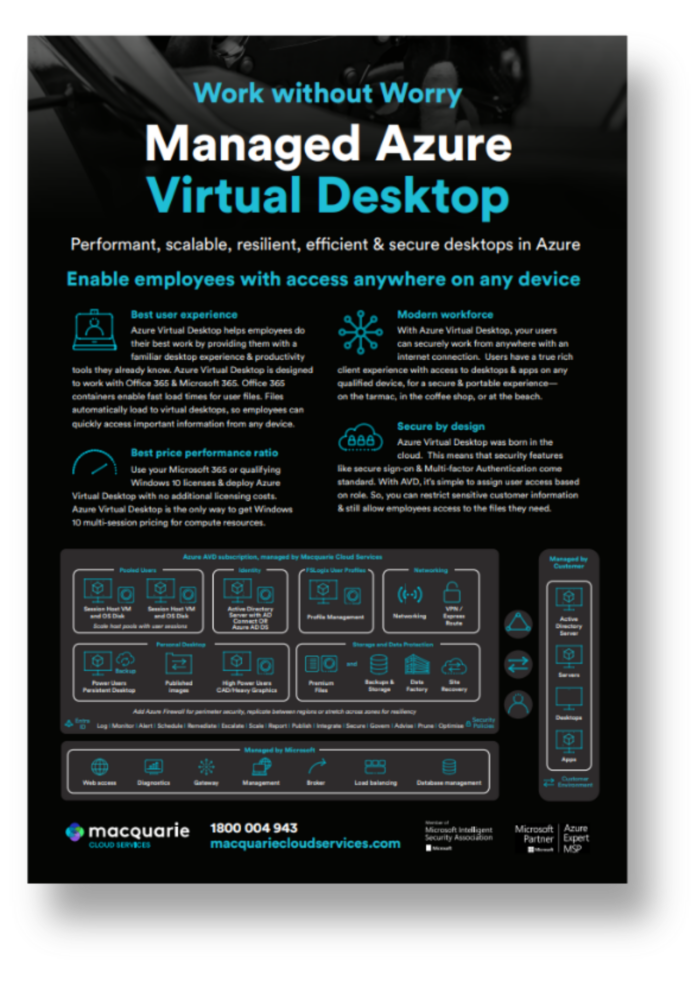
Managed Azure Virtual Desktop.

Azure Virtual Desktop gives you secure access to the apps and data you need, on any device. With Macquarie Cloud Services Managed Azure Virtual Desktop, you get a solution built on validated reference architecture, tailored to your needs. 

250218_MacquarieCloud_Portraits_09_Pauline_0909

Azure Virtual Desktop

Built for flexibility.

CIOs are under pressure to enable flexibility, protect corporate data and control costs, all while simplifying management. Managed Azure Virtual Desktop helps you modernise end-user computing without adding complexity.

Value you see

Built for security, stability and control.

Azure Virtual Desktop architected and operated with governance, compliance alignment and active cost management to reduce operational and financial risk.

seamless-support-icon-1

User experience

Give users the desktop and apps they already know, including Microsoft 365, with fast file load times and seamless access from any device.

cloud-services-1-icon_shield

Secure by design

Built-in secure sign-on and multi-factor authentication help protect access, with role-based controls to manage sensitive data.

cloud-services-icon_money-4

Price performance

Use eligible Microsoft 365 or Windows licensing and access Windows 10 multi-session to align compute costs to user needs.

cloud-services-icon_data-conections

Modern workforce

Provide a rich client experience across qualified devices, enabling secure work from the office, home or on the move.

cloud-services-icon_data-centre

Simplified management

Provision desktops, assign access and manage environments through Azure, reducing operational overhead.

cloud-services-icon_cloud-loop

Ongoing optimisation

From image publishing to monitoring and remediation, we continuously refine your Azure Virtual Desktop environment.
Let's start your quick assessment here.​

Start

Brochure

Helping CIOs enable secure, flexible hybrid work.

Managed Azure Virtual Desktop combines Microsoft’s desktop and app virtualisation service with expert design, deployment and ongoing operations from Macquarie Cloud Services. You gain centralised control, secure access to corporate data and a consistent user experience, without the overhead of managing complex infrastructure alone.

Common use cases

Where Azure Virtual Desktop delivers value.

Proven ways to strengthen security, control cost and modernise end-user computing.

DSC3362

Secure data and applications

Centralise desktops and applications in Azure to help keep sensitive data within your controlled environment, rather than on local devices.

Data Centres racks

Hybrid and remote work

Enable employees and contractors to securely access corporate desktops and apps from virtually anywhere with an internet connection.

DSC1114

Workplace transformation

Support office moves, mergers or workforce changes by rapidly provisioning virtual desktops without rearchitecting on-premises infrastructure.

DSC2438

Simplified IT operations

Shift focus from managing physical devices to managing users, policies and performance within a centralised Azure environment.

Why Macquarie Cloud Services

Operate Azure Virtual Desktop with certainty.

Designed with Essential 8 considerations from day one and governed through active Azure cost management, your environment stays secure, predictable and performance-focused. As your workforce, compliance obligations or usage patterns evolve, your Azure Virtual Desktop environment scales with control.

cloud-services-icon_personal-accountable-service

Security built in

Azure Virtual Desktop designed and operated with identity-first controls and Essential 8 considerations from the start.

cloud-services-icon_money-5

Cost under control

Active governance across Azure consumption, VM sizing and autoscaling to maintain predictable per-user costs.

MAC003_SB_v1.1_Deploy-2

Full-lifecycle expertise

Azure, EUC, networking and security capability to manage design, migration and day-two operations.
cloud-icon-01-migration

Low-risk delivery

Structured, phased implementation that reduces disruption and builds stakeholder confidence.

trusted-advice-1

Always optimised

Ongoing lifecycle, image and platform management to keep your environment stable and supported.

australia-map-icon

Live NPS +96

Service trusted across Australia, supported by local engineers and live NPS score of +96.

Contact us

Talk to an Azure expert.

We’re here to guide you through your next steps.

Azure Virtual Desktop FAQs.

Azure Virtual Desktop is a cloud-based service from Microsoft Azure that empowers organisations to build and oversee virtual desktops and applications in the cloud. Virtual desktops like Azure are accessible from different devices even without an internet connection, allowing collaboration and flexibility among remote users. Additionally, organisations seeking our cloud hosting services at Macquarie Cloud Services can utilise Azure Virtual Desktop to enhance their cloud infrastructure and access a range of Azure products.

Azure Virtual Desktop offers several benefits, including:

  1. Flexibility – Users can access their virtual desktops and applications from different devices and offline, promoting remote work and flexibility.
  2. Cost savings – Moving to a cloud-based solution can reduce hardware and maintenance costs. If the team is fully-remote, it eliminates the need to spend on office space for IT infrastructure.
  3. Scalability – Azure Virtual Desktop allows you to tweak your computing resources based on how your team or business is doing. As your user count increases, you can ramp up the computing power to ensure things run smoothly and respond quickly. On the flip side, you can dial down the resources during quieter times to save on costs. It’s like tailoring your setup to match the ebb and flow of your needs.
  4. Security – Virtual desktops come with robust built-in security features. These include multi-factor authentication and data encryption, effectively preventing unauthorised access and ensuring confidentiality of sensitive information.
  5. Compatibility – Azure Virtual Desktop provides support for Windows-based applications and legacy software. Whether your team uses modern productivity tools such as Microsoft Office Suite or legacy software like Vista applications that are no longer compatible with newer operating systems, you can still provide user access through Azure Virtual Desktop.
  6. Centralised management – Administrators can manage and configure resources from a centralised dashboard. Instead of interacting with multiple interfaces or systems, desktop managers can accomplish various tasks from one convenient location.

To connect to an Azure virtual desktop, you will need to follow these steps:

  1. Install the Windows Virtual Desktop client – The first step to connecting to an Azure virtual desktop is to install the Windows Virtual Desktop client on the device that you want to use to access it. You can download the client from the Microsoft website.
  2. Launch the client – Once you have installed the client, launch it by clicking on the desktop shortcut or searching for it in the Start menu.
  3. Enter your credentials – When the client launches, you will be prompted to enter your credentials. Use the username and password that you set up when you created your Azure virtual desktop.
  4. Select the virtual desktop – After you have entered your credentials, you will see a list of available virtual desktops. Select the one that you want to connect to and click the “Connect” button.
  5. Connect to the virtual desktop – The client will now establish a connection to the virtual desktop, and you should see a login screen. Enter your login credentials and click “Log in” to access the virtual desktop.
The cost of Azure Virtual Desktop depends on a number of factors, including the size and configuration of the virtual machine, the number of users, and the features and services that you choose to use. In general, the cost of an Azure Virtual Desktop is based on the resources that you consume, such as the number of virtual CPUs, the amount of memory, and the amount of storage. You will also need to pay for the Windows operating system, either through a per-user or per-device license, depending on your needs. There are also additional costs for features and services such as load balancing, auto-scaling, and application publishing. These costs can vary depending on your specific requirements.
Absolutely! Azure Virtual Desktop can be suitable for small businesses, especially if they require remote access to applications and data. It provides the same benefits of flexibility, scalability and security whether you are a small organisation with fewer than 200 employees or a large enterprise with multinational operations and at least 2,000 employees. Smaller businesses can benefit from the per-device model, which licenses based on the number of devices that will access Azure Virtual Desktop and not the number of users. Though it offers less flexibility than the per-user model, the per-device licensing is more cost-effective and easier to manage for smaller organisations.

Azure Virtual Desktop is a software-as-a-service (SaaS) solution that allows you to provide your employees with access to their applications and data from anywhere, on any device. Your people can stay productive wherever they are, by gaining access to their familiar desktop and productivity tools. You can also keep all your users’ applications and tools up to date as they are accessed centrally, via the cloud. Azure Virtual Desktop uses Microsoft’s Azure infrastructure, which means that it offers scalability and flexibility. Also, security features like single sign-on and multi-factor authentication are standard. Azure Virtual Desktop also makes it easy to assign access to users based on their role, meaning it’s easy to restrict sensitive customer information and ensure everyone has the files they need.

To connect to an Azure virtual desktop, you will need to follow these steps:

  1. Install the Windows Virtual Desktop client – The first step to connecting to an Azure virtual desktop is to install the Windows Virtual Desktop client on the device that you want to use to access it. You can download the client from the Microsoft website.
  2. Launch the client – Once you have installed the client, launch it by clicking on the desktop shortcut or searching for it in the Start menu.
  3. Enter your credentials – When the client launches, you will be prompted to enter your credentials. Use the username and password that you set up when you created your Azure virtual desktop.
  4. Select the virtual desktop – After you have entered your credentials, you will see a list of available virtual desktops. Select the one that you want to connect to and click the “Connect” button.
  5. Connect to the virtual desktop – The client will now establish a connection to the virtual desktop, and you should see a login screen. Enter your login credentials and click “Log in” to access the virtual desktop.

To set up an Azure Virtual Desktop, you will need to follow these steps:

  1. Sign up for an Azure account – If you don’t already have an Azure account, you will need to sign up for one. You can do this by visiting the Azure website and following the instructions to create a new account.
  2. Create a virtual machine – To create a virtual desktop, you will first need to create a virtual machine in Azure. You can do this by going to the Azure portal and clicking the “Create a resource” button. From there, search for “Windows Virtual Desktop” and select it. Follow the prompts to create a new virtual machine, including selecting the operating system, size, and location.
  3. Set up the virtual machine – Once the virtual machine has been created, you will need to set it up by installing any necessary software and configuring the operating system. You can do this by using Remote Desktop Protocol (RDP) to connect to the virtual machine and install the software you need.
  4. Create a host pool – A host pool is a group of virtual machines that are used to host one or more virtual desktops. To create a host pool, go to the Azure portal and click on the “Windows Virtual Desktop” resource. From there, click on the “Host pools” tab and then click the “Add” button. Follow the prompts to create a new host pool, including selecting the virtual machine(s) that you want to include in the pool.
  5. Create a user assignment – A user assignment is a mapping between a user and a virtual desktop. To create a user assignment, go to the Azure portal and click on the “Windows Virtual Desktop” resource. From there, click on the “User assignments” tab and then click the “Add” button. Follow the prompts to create a new user assignment, including selecting the host pool that you want to use and the user(s) who will have access to the virtual desktop.
  6. Install the client – To use the virtual desktop, you will need to install the Windows Virtual Desktop client on the device that you want to use to access it. You can download the client from the Microsoft website.
  7. Connect to the virtual desktop – Once you have installed the client, you can use it to connect to your virtual desktop by entering the necessary credentials and selecting the virtual desktop that you want to access.

Azure Virtual Desktop provides an easy-to-use virtual desktop experience that can be accessed from anywhere, on any device. It integrates with Azure Active Directory and Microsoft Intune to make it easy to deploy, manage and secure access to applications and data.

IT teams are using Azure Virtual Desktop to provide employees with a consistent experience across devices, reduce the need for expensive hardware investments, and give employees access from anywhere.

It also allows IT teams to create a virtual desktop environment for their users. This allows IT teams to create an environment where users can access applications and resources as if they were accessing them on a physical computer.

Still have questions?

Our Azure Virtual Desktop specialists are here to help.

From our experts

Explore our insights.

Explore practical insights and resources designed to support informed cloud decisions, from optimisation to long-term strategy.

CAUDIT Cloud is a sector-aligned initiative developed in partnership with Macquarie Cloud Services and Dell to provide sovereign, future-ready cloud and data centre capabilities for the Australian education and research sector.
Azure Virtual Desktop (AVD) is transforming how research environments achieve security, compliance, and operational efficiency.
Research computing is entering a transition phase where traditional HPC and AI workloads must coexist.