Managed Cyber Security. Trusted by government.
Get the same intelligence and response capability we use to secure 42% of Federal Government agencies, engineered for business.
A secure, offsite data backup solution that keeps your data protected and recoverable when you need it
Fast, effective workload recovery with a fully managed DR capability that gets you back online quickly.
Managed Data and AI. Foundations to outcomes.
Why Us? Because it’s all about you.
We’re Australia’s most trusted cloud partner with local expertise, proven delivery and service excellence.
‘Doing it Yourself’ can be empowering.
Following the guidelines to lead from the front.
Personal, accountable service you can rely on.
Service excellence built on trust and technical expertise.
Best-in-class partners. Better outcomes for you.
Build your career with an award-winning, people-first team.
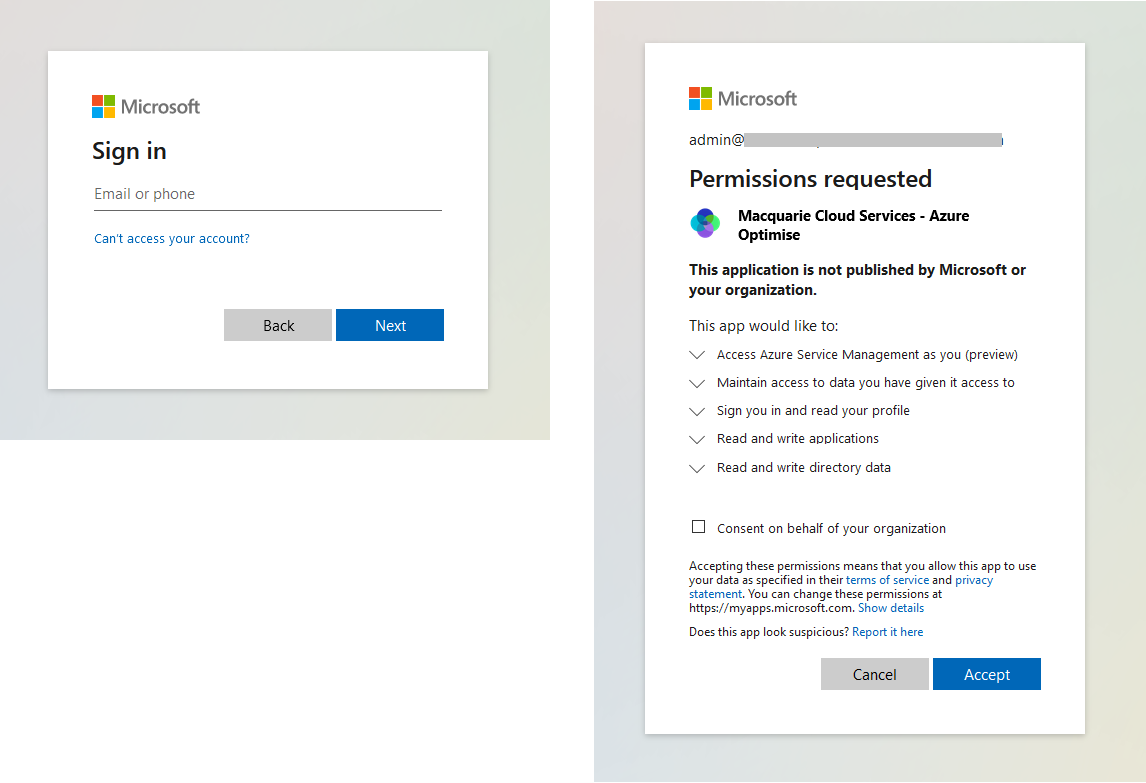
This page details the permissions we request in the Macquarie Lens tool and how you can revoke these permissions at any time.
To use our Macquarie Lens tool, you need to be a global admin of the Azure Active Directory associated with the Azure Subscriptions and Reservations you wish to optimise.
When you first sign in to Macquarie Lens, we'll request some permissions from you. This section describes the user-level permissions we request and why.
Once you sign in we do not store your credentials. Our application is provided with a Id token (via OAuth2) from Microsoft that we leverage to inject our Service Principal and Guest users into the relevant subscriptions you are responsible for selecting throughout Macquarie Lens onboarding screens.
A precondition of use of this tool is that we automatically link Macquarie Cloud Services' CSP MPN ID to your Azure account (known as Partner Admin Link) so we can demonstrate to Microsoft we are driving business outcomes for you.
Once you provide us with the relevant information, we store your contact information (Name, Company, Email address) to get in contact with you once you've completed the Macquarie Lens onboarding process.
We also store the guids (IDs) of the subscriptions and reservations you grant us access to for the purposes of completing the Azure Optimise engagement via the Macquarie Lens tool.
The Macquarie Lens tool operates on your behalf. Once you have been signed in we extract your company, name and email address and prepopulate fields in our contact form so we can get in contact with you. See our privacy policy to understand what we do with this information.
Macquarie Cloud Services use an analytics tool to survey your Azure Subscriptions and Reservations and provide insights. To do this, we automate the injection of our Macquarie Cloud Services - Lens service principal into your Azure Subscriptions and Reservations with read-only role assignments.
You may remove these role assignments at any time. However, upon removal we will no longer have access to your Subscriptions or Reservations. This means we will be unable to complete the Azure Optimise assessment, show you any data in Macquarie Lens, and we will cease the professional services engagement. See the section below for information on how you can revoke these privileges should you need to do so.
We read out the name of your AAD Tenant and use this to prepopulate the name of your company (this can be changed if not correct throughout the onboarding wizard).
Additionally, we invite the relevant Macquarie Cloud Services Principal Consultants (of your choosing throughout the onboarding wizard) as guest users to your Microsoft tenancy and grant them read-only role assignments to your Azure Subscriptions and Reservations.
Revoking access to our application is relatively straightforward as long as you are a global admin of your Azure Active Directory tenancy.
When you onboard to the Macquarie Cloud Services - Lens tool, we leverage your user permissions to add our Service Principal and selected guest users to your nominated Azure Subscriptions and Reservations.
By following these steps, you'll clean up any permissions Macquarie Cloud Services have configured for your Microsoft tenancy.
Go to Azure Portal > Subscriptions.
In every subscription you nominated us access to, click on the subscription then click the Access Control (IAM) tab.
Go to the Role Assignments tab and remove the Service Principal "Macquarie Cloud Services - Lens". Also remove any guest users.
Go to Azure Portal > Reservations.
Cycle through your list of reservations.
Click on the Reservation order ID link to go to the Reservation Order view.
Navigate to Access Control > Role Assignments and remove the service principal "Macquarie Cloud Services - Lens". Also remove any guest users.
If you have a Microsoft Customer Agreement (MCA), you need to navigate to each of your Billing accounts in Cost Management + Billing, and remove the Macquarie Cloud Services - Lens Billing Account Reader role assignment from the IAM blade.
If you have an Enterprise Agreement, navigate to Cost Management + Billing > IAM and remove the Macquarie Cloud Services - Lens Enrollment Reader role assignment.
Navigate to Azure Portal > Azure Active Directory.
In AAD navigate to Enterprise Applications > All Applications.
Click on "Macquarie Cloud Services - Lens" > Properties.
Click Delete to remove the "Macquarie Cloud Services - Lens" Enterprise Application.
Navigate to Azure Portal > Users.
In the All users pane, add a filter on User Type = Guest.
Check the checkbox next to all users with User principal name in the format flastname_id.macquariecloudservices.com#EXT#@your-tenant.
Click Delete user to clean up the user.
In AAD navigate to Enterprise Applications > All Applications.
Click on "Macquarie Cloud Services - Lens" > Properties.
Click Delete to remove the "Macquarie Cloud Services - Lens" Enterprise Application.
Need more help or have more questions?
Thank you for your note. One of our Azure consultants will be in touch with you shortly.